
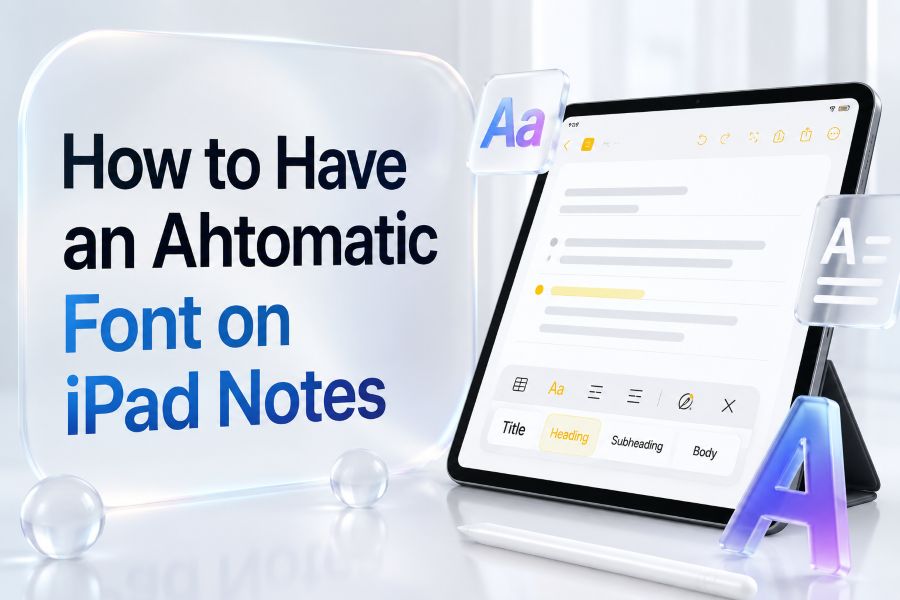
Apple Notes is simple, fast, and already built into your iPad. That is why so many students, writers, professionals, and everyday users rely on it for class notes, meeting notes, lists, ideas, journals, and quick reminders. But one question comes up often: how to have an automatic font on iPad Notes so every new note starts with the same style.
The frustrating part is that the Notes app gives you useful formatting tools, but it does not make the “default font” option obvious. You can format text as a title, heading, subheading, body text, bold, italic, checklist, or table, but setting one custom font that automatically applies to every new note is not as simple as changing a setting inside the app. Apple’s iPad Notes guide explains how to format text with Heading and Subheading styles, but it does not list a separate custom default-font setting for iPad Notes.
This guide explains what is actually possible, what is not possible, and the best practical workarounds. You will learn how to keep your notes visually consistent, how to use Apple Notes formatting smarter, when to use iCloud Notes or Apple Pages, and how tools like a Font Generator, Aesthetic Font Generator, Cursive Font Generator, or Bold Font Generator can help when you want more creative text.
How to have an automatic font on iPad Notes?
You cannot currently set a fully custom automatic default font for every new note directly inside iPad Notes. The best workaround is to use Apple Notes formatting styles, create a reusable note template, duplicate formatted notes, or use styled text from another app when needed.
Can You Set an Automatic Font in iPad Notes?
The short answer is no, not in the way most users expect. Apple Notes on iPad does not currently include a clear setting that lets you choose a custom font and automatically apply it to every new note. You can format selected text, use heading styles, make checklists, create tables, and apply basic text formatting, but that is different from setting a permanent default font.
This matters because many people want their notes to look consistent. A student may want every lecture note to start with the same title style. A writer may want clean headings and body text. A professional may want meeting notes to look organized every time. The problem is that iPad Notes is designed more like a lightweight notes app than a full document editor.
Apple’s iPad Notes documentation focuses on formatting inside each note. For example, it explains that you can select text and apply Heading or Subheading styles. Apple’s broader Notes support page also explains that users can highlight text and use the formatting button for options like italics and heading styles. That means iPad Notes does support formatting, but not a full automatic custom font system.
There is also an important difference between Notes on iPad and Notes on Mac. Apple’s Mac Notes guide says Mac users can select text, open the Fonts window, and change font, color, size, and more. On iPad, the formatting controls are simpler and more limited. So if you are looking for “default font in iPad Notes,” the realistic answer is that you need a workflow, not just one hidden setting.
How to Format Text Consistently in Apple Notes
The best way to create an automatic-feeling font system in iPad Notes is to use built-in formatting styles the same way every time.
Step 1: Open a Note
Open the Notes app on your iPad and create a new note. If you already have a note, open it and tap where you want to type.
Step 2: Use the Formatting Toolbar
Tap the formatting button in the Notes toolbar. Depending on your iPadOS version and keyboard setup, this may appear as an “Aa” or formatting icon. Apple’s iPad guide explains that users can format text by selecting it and choosing styles such as Heading or Subheading.
Step 3: Apply a Repeatable Structure
Use the same structure in every note. For example:
- Title for the note name
- Heading for main sections
- Subheading for smaller sections
- Body text for normal writing
- Checklist for tasks
- Table for organized information
Step 4: Duplicate a Template Note
Create one note with your preferred formatting. Name it something like “Note Template.” Whenever you need a new note, duplicate or copy that structure into a fresh note.
Step 5: Keep Your Style Simple
Avoid over-formatting. Apple Notes works best when you use a small set of repeatable styles. If every note has too many different text effects, your system becomes harder to maintain.
This process does not technically create an automatic font, but it gives you the same practical result: consistent-looking notes with less effort.
Best Workarounds for iPad Notes Font Settings
Since there is no simple “set default font” button, use these workarounds instead.
Create a Note Template
This is the easiest option. Make a note that already includes your preferred structure:
Title: Meeting Notes
Heading: Main Topic
Subheading: Key Points
Checklist: Action Items
Body: Notes and details
When you need a new note, copy the template and replace the text. This saves time and keeps your formatting consistent.
Use Headings as Your Default Style System
Instead of trying to change the entire font, think in terms of hierarchy. Use Title, Heading, Subheading, and Body consistently. Apple Notes supports heading-style formatting, and iOS 18 also supports collapsible sections when formatted as Title, Heading, or Subheading.
Use Apple Pages for More Font Control
If you need true font customization, Apple Pages is better than Notes. Pages is designed for documents, while Notes is designed for quick capture and organization. Use Notes for fast writing and Pages for polished formatting.
Use iCloud Notes for Syncing
If you use Notes across iPad, iPhone, Mac, and iCloud.com, keep formatting simple. iCloud Notes supports common note features such as lists, but features can vary depending on device and interface. Apple’s iCloud Notes guide explains that users can create and edit lists on iCloud.com.
Use Font Generator Tools for Creative Text
For decorative text, you can use a Font Generator to create copy-paste Unicode text. This is useful for titles, aesthetic labels, creative headings, or journal-style notes. For example:
Normal text: Daily Goals
Styled text: 𝓓𝓪𝓲𝓵𝔂 𝓖𝓸𝓪𝓵𝓼
Use this carefully. Some Unicode styles may not display perfectly across all apps or devices.
The FONT Method for Consistent iPad Notes
Use the FONT Method to build a repeatable iPad Notes formatting habit.
F — Find the Text Style You Want
Decide what your notes should look like before you start writing. Do you want clean study notes, professional meeting notes, aesthetic journal notes, or bold task lists?
For example, a student may choose:
- Title for course name
- Heading for lecture topic
- Bullets for key points
- Checklist for homework
A content creator may choose:
- Bold title
- Short sections
- Styled text for ideas
- Checklist for publishing tasks
O — Organize Your Note Format
Create a simple structure that you can repeat. A good format might look like this:
Title: Project Name
Heading: Main Idea
Subheading: Details
Checklist: Tasks
Body: Notes
This makes your notes easier to scan later.
N — Note Your Preferred Heading and Body Style
Write down your preferred formatting rules. For example:
- Use Title only once
- Use Heading for major sections
- Use Subheading for supporting details
- Use Body for normal writing
- Use checklist only for action items
This helps you stay consistent without thinking too much.
T — Turn It Into a Repeatable Habit
Once your format works, reuse it. Save a template note, duplicate it, or copy the same structure into new notes. Over time, this feels almost automatic.
The simple formula is:
Consistent Notes = Template + Heading System + Repeated Formatting Habit
That is the closest practical answer to how to have an automatic font on iPad Notes.
Common Mistakes When Changing Font in Apple Notes
Many users waste time looking for settings that do not exist. Here are the most common mistakes.
Looking for a Full Default Font Menu
iPad Notes is not a full desktop publishing tool. It does not provide the same level of font control as a design app or word processor.
Confusing Text Style With Font Family
Title, Heading, and Subheading are text styles. They change the look of text, but they are not the same as choosing a custom font family like Times New Roman, Helvetica, or Georgia.
Overusing Decorative Unicode Text
Styled Unicode text can look beautiful, but it is not always ideal for long notes. Use it for short headings, labels, or creative sections, not entire paragraphs.
Expecting Notes to Behave Like Pages
Apple Pages gives more document formatting control. Apple Notes is better for quick capture, organization, and syncing.
Forgetting Device Differences
Notes may behave differently on iPad, iPhone, Mac, and iCloud Notes. Mac Notes has more font-related options than iPad Notes, according to Apple’s Mac Notes documentation.
Practical Examples for Better iPad Notes Formatting
Here are a few simple examples you can copy.
Student Note Template
Title: Biology Lecture 04
Heading: Main Topic
Subheading: Key Definitions
Bullets: Important points
Checklist: Homework tasks
This is great for class notes because it is easy to scan.
Meeting Note Template
Title: Weekly Team Meeting
Heading: Agenda
Heading: Decisions
Checklist: Action Items
Body: Notes
This works well for professionals who need clean, repeatable meeting notes.
Creative Journal Template
Title: Today’s Reflection
Heading: Mood
Heading: Ideas
Styled heading: 𝓓𝓪𝓲𝓵𝔂 𝓣𝓱𝓸𝓾𝓰𝓱𝓽𝓼
Body: Journal entry
For aesthetic headings, use an Aesthetic Font Generator or Cursive Font Generator and paste the result into Notes.
Task List Template
Title: Daily Plan
Heading: Priority Tasks
Checklist: Main tasks
Heading: Notes
Body: Extra details
Apple also has a dedicated support page for creating checklists in Notes, which is useful if your formatting goal is productivity rather than visual design.
Best Tools to Mention for iPad Notes Font Control
You do not need many tools, but these are useful:
Apple Notes: Best for quick notes, lists, headings, and synced writing.
iPadOS formatting toolbar: Best for applying Title, Heading, Subheading, Body, bold, italic, lists, and checklists.
iCloud Notes: Helpful when you want access to notes through a browser or multiple Apple devices.
Apple Pages: Better when you need real font control and polished document formatting.
Shortcuts app: Useful if you want to automate note creation, although it will not magically set a custom default font inside Notes.
Font Generator tools: Useful for decorative headings, creative labels, stylish titles, and special text effects.
For example, if you want a strong heading, try a Bold Font Generator. If you want a soft journal title, try an aesthetic or cursive style. Keep decorative text short for best readability.
Conclusion
Learning how to have an automatic font on iPad Notes really means learning how to build a repeatable formatting system. Apple Notes does not currently offer a simple custom default font setting on iPad, but you can still get consistent results by using built-in styles, creating templates, duplicating formatted notes, and using the same structure every time.
For most users, the best setup is simple: use Title, Heading, Subheading, Body, and checklists consistently. If you need more control, use Apple Pages. If you want creative text for headings or labels, use a font generator and paste the styled result into Notes.
The practical next step is to create one “Note Template” today. Add your preferred title, heading, body, and checklist layout. Then reuse it whenever you need a clean, consistent note.
FAQs
Can I set a default font in iPad Notes?
No, iPad Notes does not currently offer a simple custom default font setting for every new note. You can use built-in formatting styles like Title, Heading, Subheading, Body, bold, italic, lists, and checklists to create a consistent note style.
How do I change text style in the Notes app on iPad?
Open a note, select the text you want to format, then tap the formatting button. You can apply styles such as Heading, Subheading, bold, italic, and other formatting options. Apple’s iPad Notes guide documents heading and subheading formatting.
Can I use different fonts in Apple Notes on iPad?
You can use Apple Notes formatting styles, but iPad Notes does not work like a full font editor. For decorative font-like text, you can paste Unicode styled text from a font generator. For real font family control, Apple Pages is a better option.
Why does styled text look different on some devices?
Many font generators use Unicode characters rather than actual installed font files. Some apps, browsers, or devices may display Unicode characters differently. That is why decorative text should be tested before using it in important notes, bios, or public content.
Is Apple Pages better than Notes for custom fonts?
Yes, Apple Pages is better if your main goal is custom fonts, document layout, and polished formatting. Apple Notes is better for quick writing, syncing, lists, and simple organization. Use Notes for speed and Pages for design control.
What is the best workaround for automatic font on iPad Notes?
The best workaround is to create a reusable note template with your preferred Title, Heading, Subheading, Body, and checklist structure. Duplicate that template whenever you need a new note. This gives you a consistent automatic-feeling format without needing a default font setting.