
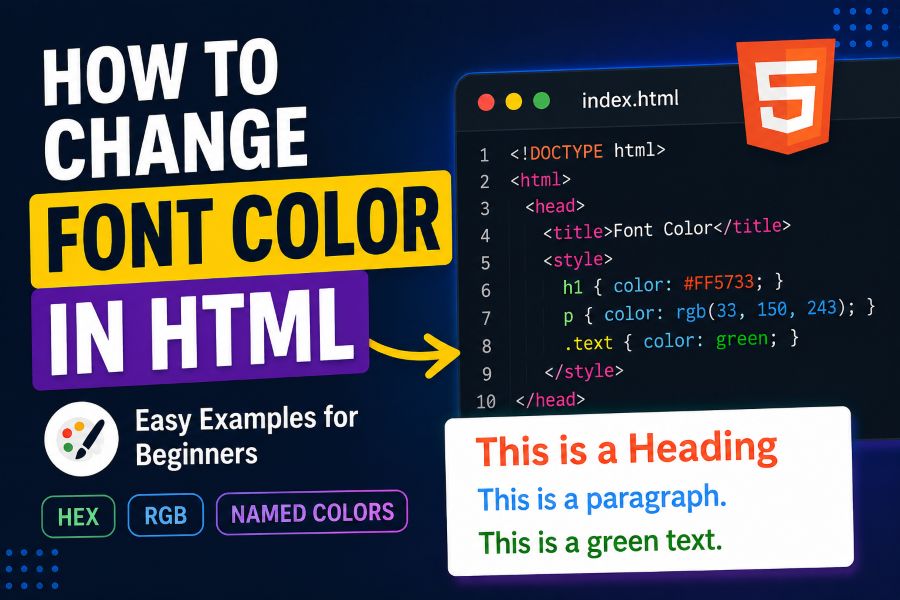
Learning how to change font color in HTML is one of the first steps toward making a webpage feel polished, readable, and visually organized. Maybe you are editing a blog post, building your first website, customizing a WordPress section, or practicing HTML and CSS in VS Code or CodePen. You know the text is showing on the page, but now you want headings, paragraphs, links, or special words to appear in a different color.
The confusing part is that older tutorials may mention the HTML <font> tag, while modern tutorials tell you to use CSS. That creates a simple question: should you change text color directly in HTML, or should you use CSS? The modern answer is CSS. MDN explains that the CSS color property sets the foreground color of an element’s text and text decorations, while the old HTML <font> element is deprecated and no longer recommended.
This guide shows the correct modern methods with practical examples. You will learn how to use inline CSS, internal CSS, external stylesheets, hex colors, RGB colors, named colors, reusable classes, and readable contrast rules.
Why CSS Is the Right Way to Change Font Color in HTML
The best way to change text color on a webpage is with CSS, not the old HTML <font> tag. The <font> tag was used in older HTML to control text appearance, including color, size, and face. However, MDN marks the <font> element as deprecated and recommends avoiding it because it may only remain for compatibility and could stop working reliably in the future.
CSS separates design from structure. HTML should describe the content, while CSS should control how that content looks. This makes your code cleaner, easier to update, and more professional.
For example, this old method is not recommended:
<font color=”red”>This is red text.</font>
The modern CSS method is:
<p style=”color: red;”>This is red text.</p>
Or better, use a CSS class:
<p class=”red-text”>This is red text.</p>
.red-text {
color: red;
}
This matters because websites often have many headings, paragraphs, links, buttons, and labels. If you style every line manually, your code becomes hard to maintain. If you use CSS classes, you can update the color in one place and apply it across many elements.
For beginners, the key idea is simple: HTML holds the text; CSS changes the color.
How to Change Font Color in HTML Step by Step
There are three common ways to change font color in HTML: inline CSS, internal CSS, and external CSS. Each method works, but they are not equally useful for every project.
1. Change Font Color With Inline CSS
Inline CSS means you add the style directly to the HTML element.
<p style=”color: blue;”>This paragraph is blue.</p>
You can also use hex colors:
<h1 style=”color: #6F00FF;”>This heading is purple.</h1>
Or RGB colors:
<p style=”color: rgb(59, 2, 112);”>This text uses RGB color.</p>
Inline CSS is useful for quick tests, small examples, or one-off changes. But it is not the best method for larger websites because it mixes content and styling in the same line.
2. Change Font Color With Internal CSS
Internal CSS goes inside a <style> block in the HTML file.
<style>
.purple-heading {
color: #6F00FF;
}
.soft-text {
color: #5C4A75;
}
</style>
<h1 class=”purple-heading”>Welcome to My Website</h1>
<p class=”soft-text”>This paragraph uses a softer color.</p>
This is better than inline CSS because you can reuse the same class multiple times. It works well for single-page projects, small landing pages, or practice files.
3. Change Font Color With External CSS
External CSS is the best method for most real websites. You create a separate CSS file, such as style.css, then link it to your HTML file.
<link rel=”stylesheet” href=”style.css”>
Then add your styles in style.css:
.main-heading {
color: #3B0270;
}
.body-text {
color: #333333;
}
.highlight {
color: #6F00FF;
}
And use the classes in HTML:
<h1 class=”main-heading”>My Main Heading</h1>
<p class=”body-text”>This is normal paragraph text.</p>
<p>This word is <span class=”highlight”>highlighted</span>.</p>
External CSS is cleaner, scalable, and easier to maintain. It is the method most developers use for full websites.
Best Color Formats for HTML Text Styling
CSS gives you several ways to write color values. MDN notes that named colors such as red, blue, and black can be used anywhere a CSS color value is accepted.
Here are the most beginner-friendly options.
Named Colors
Named colors are easy to read.
p {
color: red;
}
Examples:
h1 {
color: navy;
}
p {
color: black;
}
a {
color: purple;
}
Named colors are good for learning, but they give you less design control.
Hex Colors
Hex colors are very common in web design.
h1 {
color: #6F00FF;
}
A hex color starts with # and usually uses six characters. For example:
.dark-purple {
color: #3B0270;
}
.lavender {
color: #E9B3FB;
}
Hex colors are useful when you want exact brand colors.
RGB Colors
RGB uses red, green, and blue values.
p {
color: rgb(59, 2, 112);
}
RGB is useful when you want to work with color values directly.
You can also use transparency with rgba():
.subtle-text {
color: rgba(59, 2, 112, 0.75);
}
HSL Colors
HSL stands for hue, saturation, and lightness.
h2 {
color: hsl(266, 100%, 50%);
}
HSL is helpful when you want to adjust brightness or saturation more intuitively.
Quick Color Formula
Use this simple decision formula:
Best HTML Text Color Choice = Readability + Brand Fit + Reusability
A color should be easy to read, match the design, and be reusable through CSS classes.
Common Examples: Headings, Paragraphs, Links, and Specific Words
You do not always need to change the color of a whole page. Often, you only need to style certain elements.
Change Heading Color
<h1 class=”page-title”>Font Color Guide</h1>
.page-title {
color: #3B0270;
}
Change Paragraph Color
<p class=”intro-text”>This paragraph has a custom color.</p>
.intro-text {
color: #5C4A75;
}
Change Link Color in HTML
<a href=”#” class=”custom-link”>Read more</a>
.custom-link {
color: #6F00FF;
}
.custom-link:hover {
color: #3B0270;
}
This is useful for buttons, navigation links, blog links, and call-to-action text.
Change One Word Color
Use a <span> when you want to style only part of a sentence.
<p>
Learn to change <span class=”highlight-word”>font color</span> in HTML.
</p>
.highlight-word {
color: #6F00FF;
font-weight: 700;
}
Change Multiple Text Styles With One Class
<p class=”brand-text”>This text uses the brand color.</p>
<h2 class=”brand-text”>This heading uses the same color.</h2>
.brand-text {
color: #6F00FF;
}
Reusable classes are the easiest way to keep your website consistent.
The COLOR Method for Changing Font Color in HTML
Use the COLOR Method when you want a simple system for styling text correctly.
C — Choose the Text Element
First, decide what you want to color. Is it a heading, paragraph, link, button, table label, or one word inside a sentence?
Example:
<h2>Important Update</h2>
O — Open the Style Method
Choose your styling method:
- Inline CSS for quick testing
- Internal CSS for small pages
- External CSS for full websites
- WordPress custom CSS for theme or page styling
For most real websites, external CSS or scoped page CSS is better than inline styles.
L — Link the Color Property
Apply the CSS color property. MDN defines color as the CSS property that sets the foreground color of text and text decorations.
.notice {
color: #6F00FF;
}
O — Optimize With Readable Contrast
A beautiful color is not useful if people cannot read it. WCAG guidance says normal text should have a contrast ratio of at least 4.5:1, while large text should have at least 3:1.
For example, light pink text on a white background may look soft but may be hard to read. Deep purple on a light background is usually easier to scan.
R — Reuse the Style With CSS Classes
Once you find a good color, turn it into a reusable class.
.text-primary {
color: #3B0270;
}
.text-accent {
color: #6F00FF;
}
.text-muted {
color: #5C4A75;
}
Then use those classes throughout your HTML.
<h1 class=”text-primary”>Main Title</h1>
<p class=”text-muted”>Supporting paragraph text.</p>
<a class=”text-accent” href=”#”>Read more</a>
The COLOR Method keeps your styling organized and beginner-friendly.
Mistakes to Avoid When Changing Font Color in HTML
One common mistake is using the old <font> tag. It may still appear in old tutorials, but it is deprecated and should be replaced with CSS.
Another mistake is using too many colors. Beginners often color every heading, paragraph, and link differently. That can make a page look messy. A clean website usually uses a small palette: one main text color, one muted text color, one accent color, and one link color.
A third mistake is ignoring contrast. Light gray text may look modern, but it can be difficult to read. Use accessible contrast, especially for body text, buttons, forms, navigation, and mobile screens.
A fourth mistake is styling everything inline. Inline styles work, but they become hard to update. Use CSS classes when you want reusable design.
A fifth mistake is confusing font color with font family. Font color changes the color of the text. Font family changes the typeface. For typography decisions, our guide on what font do most books use explains why readability matters so much in long-form text.
Finally, remember that every platform handles font styling differently. For example, Apple Notes and PowerPoint have different font controls. You can compare those workflows in our guides on how to have an automatic font on iPad Notes and how to change default font in PowerPoint.
Practical Tools for HTML Font Color Work
You do not need advanced software to change text color in HTML. A few simple tools are enough.
VS Code is great for editing HTML and CSS files. It gives syntax highlighting and makes mistakes easier to spot.
CodePen is useful for testing small HTML and CSS examples quickly.
Browser developer tools in Chrome, Safari, and Firefox let you inspect text, test color changes, and preview CSS without editing your real file.
MDN Web Docs is one of the best references for HTML and CSS properties, including the CSS color property.
HTML color pickers help you choose hex, RGB, or HSL values.
Font Generator tools can help when you want creative text effects for titles, bios, or social content. Use a Font Generator for general text styling, an Aesthetic Font Generator for soft styles, a Cursive Font Generator for script-like text, or a Bold Font Generator for stronger visual emphasis.
Use decorative text carefully on websites. It can be fun for headings or short creative labels, but standard CSS is better for normal webpage content.
Conclusion
Learning how to change font color in HTML is really about learning the CSS color property. You can use inline CSS for quick edits, internal CSS for simple pages, and external CSS for cleaner websites. The most professional method is to create reusable CSS classes so your headings, paragraphs, links, and highlights stay consistent across the page.
Avoid the outdated <font> tag, keep your color palette simple, and always check readability. A color that looks stylish but is hard to read will hurt the user experience. Use the COLOR Method: choose the element, open the styling method, link the color property, optimize contrast, and reuse styles with classes.
Your next step is simple: create three CSS classes today: one for primary text, one for muted text, and one for accent text. Then apply them to a heading, paragraph, and link in your HTML file.
FAQs
What is the best way to change font color in HTML?
The best modern way is to use CSS with the color property. You can apply it inline, inside a <style> block, or in an external CSS file. For real websites, CSS classes are usually the cleanest and easiest method to maintain.
Can I still use the HTML font tag for color?
You should avoid using the <font> tag. MDN marks it as deprecated and no longer recommended. Modern HTML should use CSS for text color, size, and visual styling because CSS is cleaner, more flexible, and easier to update.
How do I change only one word color in HTML?
Wrap the word in a <span> and apply a CSS class. For example, write <span class=”highlight”>word</span> in HTML, then use .highlight { color: #6F00FF; } in CSS. This changes only that selected word.
How do I change link color in HTML?
Use CSS to target the link. For example, .custom-link { color: #6F00FF; } changes the normal link color, and .custom-link:hover { color: #3B0270; } changes it when users hover over it.
What color format should I use in CSS?
Use hex codes for exact brand colors, named colors for quick learning, RGB when working with red-green-blue values, and HSL when adjusting hue, saturation, and lightness. Hex is one of the most common choices for website design.
Why is text contrast important in HTML?
Text contrast affects readability and accessibility. WCAG guidance says normal text should have at least a 4.5:1 contrast ratio, while large text should have at least 3:1. Good contrast helps more users read your content comfortably.