
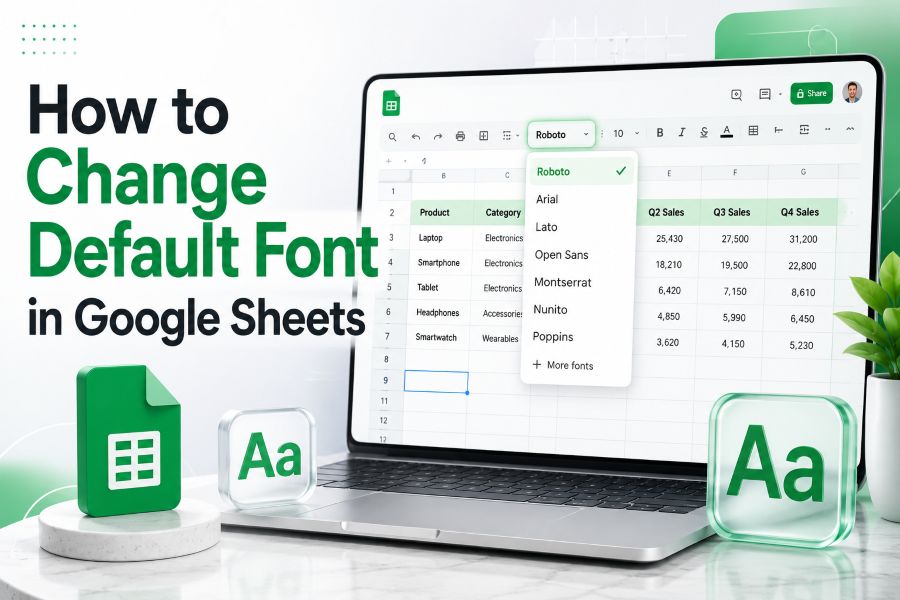
If you use Google Sheets often, you probably want your spreadsheets to look clean and consistent from the start. Maybe you prefer Arial, Roboto, Georgia, or a more readable font size for reports, budgets, trackers, classroom sheets, or business dashboards. That is why many users search for how to change default font in Google Sheets and expect to find one simple setting that changes every new spreadsheet forever.
Here is the important part: Google Sheets does let you change the font across a spreadsheet, and it also lets you customize a spreadsheet theme. Google’s official help page says themes can affect the text font and color of grid text, charts, and pivot tables, and you can open Format > Theme to choose or customize a theme. But Google Sheets does not work exactly like a word processor where you set one global default font for every new file from one account-level setting.
The good news is that you can still get the result you want. You can change the font for an entire sheet, customize the theme font, and create a reusable template so every future spreadsheet starts with your preferred style. This guide explains the best beginner-friendly methods, when to use each one, and how to avoid common formatting mistakes.
How to change default font in Google Sheets?
Open your spreadsheet, go to Format > Theme, click Customize, choose your preferred font, and save the theme. For future spreadsheets, the best workaround is to create a formatted template file in Google Drive and copy it whenever you need a new sheet.
Can You Really Change the Default Font in Google Sheets?
Google Sheets gives you two practical ways to control font style. You can manually select cells and change their font, or you can use the spreadsheet theme settings to apply a broader style. Google’s help documentation says users can format text and numbers using toolbar options, and themes can apply changes to the format of an entire spreadsheet.
However, there is a difference between changing the font in one spreadsheet and setting a permanent account-wide default font for every spreadsheet you create. Google Sheets does not present a simple “make this my default font for all future files” button in the same way many users expect. Instead, the most reliable approach is to customize the current sheet and then save or duplicate that file as a template.
This matters for teams, teachers, freelancers, and business owners. If each spreadsheet uses a different font, size, and layout, your work can look inconsistent. Reports may feel less polished. Shared documents may become harder to scan. A consistent Google Sheets default style makes your spreadsheets look more professional and easier to read.
If you also work across other tools, remember that each platform handles default fonts differently. For example, Apple Notes has its own limitations, which you can compare in our guide on how to have an automatic font on iPad Notes. Google Sheets gives more spreadsheet-level control through themes, but templates are still the best long-term workflow.
How to Change Default Font in Google Sheets Step by Step
The fastest way to change the theme font in Google Sheets is through the Theme menu. This method is best when you want the current spreadsheet to follow a consistent font style.
Step 1: Open Your Spreadsheet
Open Google Sheets from Google Drive or go directly to Sheets and choose the spreadsheet you want to format.
Step 2: Go to Format
At the top menu, click Format. Google’s official help page lists Format > Theme as the path for adding or customizing a theme in a spreadsheet.
Step 3: Click Theme
Choose Theme from the Format menu. A theme panel should appear on the right side of the screen.
Step 4: Click Customize
In the theme panel, choose Customize. This is where you can adjust the theme style for the spreadsheet.
Step 5: Choose Your Font
Open the font dropdown and select the font you want to use. This changes the spreadsheet theme font, which can affect grid text, charts, and pivot tables according to Google’s help documentation.
Step 6: Save the Theme
Click Done or close the customization panel after saving your changes. Your spreadsheet should now use the selected theme font where theme formatting applies.
Step 7: Check Existing Manual Formatting
If some cells do not change, they may already have manual formatting. Google notes that if you change the format of an item in your spreadsheet, that manual formatting overrides the theme. In that case, select those cells and reset or reapply the font manually.
Other Ways to Change Font in Google Sheets
The theme method is useful, but it is not the only option. Depending on your goal, one of these methods may work better.
Change Font for the Entire Sheet
If you want every visible cell in the current sheet to use the same font, click the blank square at the top-left corner of the grid, above row 1 and left of column A. This selects the entire sheet. Then choose your preferred font from the toolbar.
This method is simple and fast. It works well for one-off spreadsheets, trackers, and documents where you do not need a reusable template.
Change Font for Selected Cells
If you only want to format a header row, table section, or dashboard area, select those cells and choose a font from the toolbar. Google’s official help page explains that you can select one or more cells and use the toolbar to format text or numbers.
This is useful when you want headers in one style and body data in another.
Use a Template Spreadsheet
A template is the best solution if your real goal is to “set default font Google Sheets” for future work. Create a blank spreadsheet with your preferred font, size, colors, column widths, header styles, and tabs. Save it as something like:
Google Sheets Template — Default Font
Whenever you need a new spreadsheet, open that file and make a copy. This gives you a repeatable default style without rebuilding formatting from scratch.
Use Google Drive Organization
Keep your template in a dedicated Google Drive folder. You can create a folder named “Spreadsheet Templates” and store your formatted files there. This makes it easier for teams or students to reuse the same Google Sheets formatting every time.
Use Creative Text Only When Needed
For normal spreadsheet data, use readable fonts. But for labels, dashboard titles, or social-style text snippets, you can use a Font Generator, Aesthetic Font Generator, Cursive Font Generator, or Bold Font Generator. Use these only for short decorative text, not large data tables.
Best Practices for Google Sheets Font Settings
A good spreadsheet font should be readable, consistent, and practical. Fancy formatting can look attractive, but spreadsheets are mainly built for clarity.
Use these tips:
- Choose one main font for most cells.
- Use bold text for headers, not for every row.
- Keep font size readable, usually around 10–12 points for data-heavy sheets.
- Use larger text for dashboard titles or summary sections.
- Avoid mixing too many fonts in one spreadsheet.
- Use theme settings when you want consistent charts and pivot tables.
- Use templates when you want future files to start with the same style.
Google Sheets themes are especially useful because they affect more than plain cells. Google says spreadsheet themes can affect grid text, charts, pivot tables, hyperlink colors, chart backgrounds, and chart series colors. That makes themes better than manually changing a few cells when you want a polished spreadsheet system.
If readability is your main concern, you may also enjoy our guide on what font do most books use. Long-form reading and spreadsheet scanning are different, but both depend on clean, comfortable typography.
The SHEET Method for Consistent Spreadsheet Fonts
Use the SHEET Method when you want your Google Sheets font workflow to feel automatic.
S — Select the Cells or Full Sheet
Start by deciding what you want to format. If you want the whole sheet to look consistent, select the full grid. If you only need a header row or table area, select that range.
H — Head to the Font Menu
Use the toolbar font dropdown or go to Format > Theme if you want broader spreadsheet styling. The toolbar is best for direct cell formatting. The theme menu is better for spreadsheet-wide style direction.
E — Edit the Font, Size, and Style
Choose your font, font size, bold style, colors, and alignment. Keep it simple. A clean spreadsheet usually uses one main font and only a few style variations.
E — Establish a Reusable Template
Create a blank spreadsheet with your preferred font settings, header styles, tab names, frozen rows, and column widths. Store it in Google Drive and copy it when you need a fresh file.
T — Turn It Into Your Default Workflow
Instead of opening a blank Google Sheet every time, start from your template. This makes your spreadsheet formatting consistent and saves time.
The simple formula is:
Consistent Google Sheets Font = Theme Font + Full-Sheet Formatting + Reusable Template
This formula is not a technical setting. It is a practical workflow that gives you the same result most users want when they search for how to change default font in Google Sheets.
Common Mistakes When Changing Fonts in Google Sheets
The first mistake is expecting one setting to control every future spreadsheet automatically. Google Sheets themes work inside spreadsheets, but a reusable template is still the better approach for future files.
The second mistake is manually formatting random cells without a plan. When cells have manual formatting, they may override theme changes. Google’s help page clearly notes that changed item formatting can override the theme.
The third mistake is choosing decorative fonts for data-heavy spreadsheets. A spreadsheet should be easy to scan. If users struggle to read numbers, labels, or table headers, the font choice is hurting the file.
The fourth mistake is ignoring charts and pivot tables. If your spreadsheet includes dashboards, reports, or summaries, use theme settings so visual elements stay consistent.
The fifth mistake is not creating a template. If you regularly make invoices, trackers, schedules, reports, grade sheets, or content calendars, a template can save time and reduce formatting errors.
If you create presentations too, default font behavior works differently there. Read our guide on how to change default font in PowerPoint if you want consistent fonts in slides.
Practical Examples for Different Users
A student might create a semester tracker with a clean font, bold course names, and readable assignment rows. Once the sheet looks right, they can save it as a template for every class.
A teacher might create a gradebook template with a consistent font, frozen header row, color-coded columns, and clear section labels. Reusing that file saves time each term.
A freelancer might build an invoice tracker with a professional font, larger headers, and clean summary rows. That template can be copied for each client or month.
A business owner might create dashboards where the theme font applies to tables, charts, and pivot tables. Since Google says spreadsheet themes can affect charts and pivot tables, this is better than formatting only individual cells.
A web designer or blogger may care about typography across platforms. If you work with website text too, our guide on how to change font color in HTML explains another side of text styling outside spreadsheets.
Conclusion
Learning how to change default font in Google Sheets is really about choosing the right formatting method. If you only need to update one spreadsheet, use Format > Theme > Customize or select the entire sheet and change the font from the toolbar. If you want future spreadsheets to start with the same font, create a reusable Google Sheets template and copy it whenever you need a new file.
The best workflow is simple: pick a readable font, apply it through the theme or full-sheet formatting, then save that setup as a template. This gives you consistent spreadsheets without wasting time on repeated formatting.
Your next step is to open a blank Google Sheet, choose your preferred font, set your header and body styles, and save it as your personal spreadsheet template.
FAQs
Can I set a permanent default font in Google Sheets?
Google Sheets lets you customize a spreadsheet theme and change fonts across a sheet, but it does not provide a simple account-wide default font button for every new spreadsheet. The best workaround is to create a formatted template and duplicate it whenever you need a new file.
How do I change the font for an entire Google Sheet?
Click the blank square above row 1 and left of column A to select the whole sheet. Then choose your preferred font from the toolbar. This changes the selected cells in the current sheet, but it does not automatically change future spreadsheets.
Does Google Sheets theme change the font?
Yes. Google’s help page says spreadsheet themes can affect the text font and color of grid text, charts, and pivot tables. You can access themes through Format > Theme and customize the available theme options.
Why did some cells not change after I updated the theme?
Some cells may have manual formatting already applied. Google notes that manual formatting can override the theme. If certain cells do not follow the new theme font, select them and reapply the font manually or clear existing formatting.
Can I use Google Fonts in Google Sheets?
Google Sheets offers fonts through its own font menu and theme options. Availability can vary by interface and feature area. If you need a specific font for polished documents, you may need to use another Google Workspace tool or keep your Sheets font choices within the available menu.
What is the best font for Google Sheets?
The best font for Google Sheets is usually simple and readable. Arial, Roboto, and similar clean sans-serif fonts work well for data tables, reports, schedules, and dashboards. Avoid decorative fonts for large spreadsheets because they can reduce readability.